
BlueSky’s Modern CRM Playbook Series: Lead Assignment in Dynamics 365

The faster you put the right seller on a new lead or opportunity, the higher your connect and conversion rates. Dynamics 365 gives you three solid paths: out-of-the-box Assignment Rules in Sales (via Work Assignment), a custom rules engine with Dataverse plug-ins, or a Power Automate flow that evaluates logic and assigns owners. Work Assignment (segments → sequences → assignment rules) natively supports round-robin and load-balancing, and can also factor seller availability and capacity.

Option 1 — Dynamics 365 Assignment Rules

What it is. Define conditions (segment + rule logic) and choose how to distribute: round-robin or load-balancing. You can assign to sellers, teams, or queues, and optionally respect seller availability windows and capacity. Records are processed in order of rules and there may be a short delay because the engine runs on a pooling interval. (Microsoft Learn)

  • Create rules for Leads, and Opportunities, then activate; rules run top-down, first match wins.
  • Round-robin vs load-balancing behavior, plus how availability buckets influence routing.
  • Match by seller attributes you define (e.g., language, territory modeled as an attribute) and/or fields on user records. Set the capacity per seller or team.
  • Practical limits: up to 10 record conditions; up to 5 seller/team/queue attribute conditions.

Licensing note. This feature requires Sales Enterprise or Sales Premium.

Option 2 — Custom Rules Engine with Dataverse Plug-ins

Why teams choose this. You want instant, in-transaction decisions with full control over logic, data joins, and fallbacks—no platform limits on condition counts. Register a plug-in on Lead/Opportunity Create or Update; run synchronously (pre/post operation) to decide ownership immediately, or asynchronously if the logic is heavy.
What you can model easily

  • Territory, product line, partner channel, language, or any custom attribute on User/Team.
  • Skills as a lookup/attribute (e.g., certifications) and apply seniority or weighting.
  • Workload checks (count of active records) similar to capacity, but fully customizable.


Option 3 — Custom Rules with Power Automate

Why teams choose this. You prefer low-code, cross-system logic, or want to call external services without writing C#. Use the Dataverse “When a row is added/modified” trigger, branch with conditions, look up User/Team, then Assign. Great for integration-driven routing (e.g., territory from ERP, reseller map from a SharePoint list).

Side-by-Side Comparison

FeatureAssignment Rules (Work Assignment)Custom Plug-in EnginePower Automate Flow
Best forFast, admin-managed routing with fairness (round-robin / load balancing), availability, capacity.Maximum control, transactional decisions, complex logic, near-zero routing latency.Low-code, cross-app logic, calling external systems and services without C#.
Supported recordsLeads, OpportunitiesAny tableAny table with Dataverse trigger.
Distribution modesRound-robin and Load-balancing; can consider availability buckets and capacity.Whatever you code (round-robin, weighted, ML score thresholds, SLAs).Build your own (round-robin lists, counters, or capacity from Dataverse).
Territory/skillsUse seller attributes or user fields; model “skills/territory” as attributes.Full freedom (custom lookups, weightings, decay).Full freedom (tables + connectors).
Availability windows“Assign if seller is available within N hours.”Implement calendars/working hours checks in code.Check calendars/shift tables or Outlook/Graph via connectors.
Rule limitsUp to 10 record conditions; up to 5 seller/team/queue conditions; first-match rule wins.No platform limits (your code/runtime only).No hard rule limits; flow complexity grows with branches.
LatencyEngine runs on a pooling interval; slight delay possible.Synchronous plug-ins execute in-transaction (fast); async via queue.Near-real-time; depends on trigger and service load.
LoggingSystem behavior visible; fewer low-level logs.PluginTraceLog / ITracingService, App Insights options.Built-in run history, retries, error handling.
LicensingUnder Sales Enterprise / Sales Premium licenseIncluded with Dataverse; developer effort required.Power Automate Premium for Dataverse & many connectors.
Admin effortLow/medium (configure in Sales Hub).High upfront (C#), lowest runtime cost.Medium (low-code), ongoing flow governance.

Quick take

  • If you want fast, fair, admin-friendly routing, and cost is not an issue, start with Assignment Rules.
  • If you need real-time, instant, complex logic (and developer resources), use a plug-in.
  • If you need cross-system logic with minimal code, use Power Automate.
BlueSky’s Modern CRM Playbook Series: AI Based Lead Scoring

Why lead scoring matters?

Your reps should start every day with the right list. Dynamics 365 Sales gives you two viable paths: Microsoft’s predictive lead scoring (quick to turn on, AI-driven from your CRM history) and a custom model with Power Automate (you control the signals, weights, and when/how scores update).

Path A — Microsoft’s Predictive Lead Scoring

What it is. A built-in model that analyzes your historical wins/losses to score open leads. You can see top influencing factors and use scores anywhere in Sales (views, dashboards, routing).

Licensing note. Predictive lead scoring requires the Dynamics 365 Sales Enterprise tier. Microsoft’s docs also note an allowance of 1,500 scored records per month with Enterprise.

Where to turn it on (Microsoft Learn). Sales Hub Sales Insights settingsLead scoring.

Good for

  • Fast time-to-value if you have clean history in CRM.
  • Teams that want “good default” AI without building/maintaining rules.
  • UI graphics that shows lead score and grade overtime.

Watch-outs

  • Limited control over the exact features/weights used by the model.
  • Monthly scoring capacity is limited on Enterprise license; advanced Sales Insights features can require additional licensing.

Path B — Custom Lead Scoring with Power Automate + AI (recommended for control)

Why teams choose this route. You decide what “hot” means and can blend firmographics + history + live intent. A flow runs at lead create/update, computes your score, and writes it back to a custom field on Lead.

Example signals we include

  • Company Size (e.g., employee count or revenue band → larger = higher weight)
  • Job Title (C-level/VP/Director > Manager > Individual Contributor)
  • Previous Purchase (frequency/recency/amount → upsell potential)
  • AI-derived Intent from Request Description
    Use AI to read the free-text “How can we help?” and infer purchase intent (e.g., “Need pricing and delivery lead time for 200 units next month” → High).

How it works (flow blueprint)

  1. Trigger: When a Lead is created/updated in Dataverse.
  2. Enrich: Look up Account size, last order, role seniority, etc.
  3. Intent AI step:
    • Use AI Builder (Category Classification/Prompt-based sentiment/Custom prompt) to classify purchase intent from the description; or
    • Call an Azure OpenAI endpoint via HTTP for a custom intent/confidence output.
  4. Score: Calculate a 0–100 score with your weights.
  5. Write back: Update custom fields: c_leadscore and c_scoregrade on the Lead.

Licensing/capacity: Custom scoring flows typically require Power Automate Premium for Dataverse/premium connectors, and AI Builder credits if you use AI Builder models.

Scoring sketch (example weights)

  • Company Size (0–30)
  • Job Title seniority (0–25)
  • Previous Purchase recency/value (0–25)
  • AI Intent from description (Low/Med/High → 0/10/20)

What does “better results” look like?

Whichever path you choose, treat scoring like a product: monitor conversion by score band, tune thresholds/weights monthly, and A/B test routing rules. Use predictive scoring as a baseline, then move to (or augment with) a custom flow when you need richer signals or tighter control.

Side-by-side comparison


Microsoft Predictive Lead Scoring

Custom Power Automate + AI

Setup speed

Quick: enable in Sales Insights and publish a model.

Medium: build a Dataverse flow, define weights, add AI step.

Signals

Model chooses/weights historical factors; you can view/edit influencing attributes.

You pick the exact features: Company Size, Job Title, Previous Purchase, AI-parsed Request Description (intent), plus any external data.

Control/Transparency

Good visibility, limited control of the underlying algorithm.

Full control over features, weights, thresholds, and when scores update.

Licensing & capacity

Requires Sales Enterprise; ~1,500 scored records/month noted in Microsoft docs; some Sales Insights features may need additional licensing.

Power Automate Premium for flows & premium connectors; AI Builder credits if using AI Builder models (capacity-based).

Best fit

Teams with strong historical data that want fast, standard AI.

Teams needing precise business rules and richer intent signals.

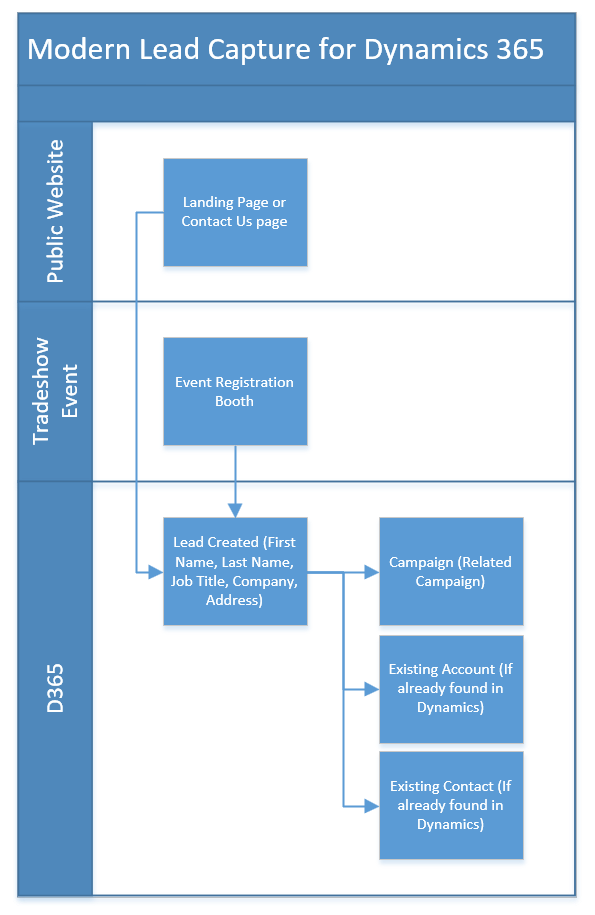
BlueSky’s Modern CRM Playbook Series: Modern Lead Capture for Dynamics 365

Turn website and tradeshow inquiries into CRM-ready Leads
Before you optimize conversion, get the first mile right: every inquiry lands in Dynamics 365 fast, complete, and consistent. This guide stays focused on website forms → D365 and tradeshow/mobile capture → D365. We’ll cover event programs with Dynamics 365 Journeys in a future article.

Why Sales & Marketing should care

• Faster follow-up: inquiries appear in Dynamics within minutes—no CSVs, no black holes.
• Trustable attribution: UTMs and landing pages travel with the Lead for ROI reporting.
• Cleaner execution: one place for reps to work, one source of truth for marketers.

Part 1 — Capture from your website directly into Dynamics 365

Keep the form short
Visible fields: First Name, Last Name, Email, Company, optional Phone, “How can we help?”
Hidden/system fields:
• UTMs: utm_source, utm_medium, utm_campaign
• Page context: landing_page_url, referrer_url

Two proven implementation paths

A) Dynamics 365 Marketing / Customer Insights – Journeys forms
• Build a Marketing Form, place it on your site.
• Map fields 1:1 to Dataverse Lead columns.
• Real-time submission creates/updates the Lead immediately.
B) Your CMS form + Power Automate (webhook)
1. Form POSTs to a secure Power Automate HTTP trigger.
2. Lock POSTs request to a public website IP address.
3. Normalize inputs (lowercase/trim email) and guard missing values.
4. De-duplicate via Dataverse “List rows” on emailaddress1 (consider company domain too).
5. Create/Update Lead with mapped fields, UTMs, and consent.

Lead Quality & Spam Prevention: Protect forms with CAPTCHA to stop bot entries.

Part 2 — Capture tradeshow & event Leads → Dynamics 365

(Tools like iCapture are great examples. You can also build a lightweight Power Apps mobile app for badge/card capture.)
We’ll cover Dynamics 365 Journeys for full event programs (registrations, attendance) in a later article.
A standard template reps actually use
Required: Event Name, Date, Lead Source = Tradeshow, First/Last, Email, Company, Phone, Campaign (Hidden Field)
Context: Interest (picklist), Notes/Next Step, Hot/Warm flag, Scan Type (Badge/Card)

Two integration patterns

A) iCapture → Dynamics connector (fastest to deploy)
• Map fields to Lead columns; enable immediate sync and image upload (Notes).
B) Power Apps (Canvas) mobile app → Dataverse (build your own)
• Use the device camera to snap badges/cards; write directly to Lead + Notes.
• Perfect when you want tight customization (custom picklists, offline first, rep login).
• Sync logic mirrors the website flow (normalize, de-dupe, create/update).

Day-of-show best practices
• Require Email where possible
• Photo the badge/card for cleanup and context
• Make sure you attribute the badge scan to a campaign (This will help calculate ROI for tradeshows)
• Real-time sync of data

Data enrichment

Once a Lead exists, add the context Sales needs—without bloating your public forms.
Light, sales-useful enrichment ideas
• Company basics: Number of employees, industry (SIC or NAICS Codes), HQ country/region, Annual Revenue
• Account match: link to existing Account by domain, suggest Account Owner
• Territory helper: derive region/state for future routing
How to do it
• Power Automate calls to approved enrichment sources or internal lookups
• Write to dedicated fields and surface them on the Lead form so reps see value immediately.
Keep enrichment purposeful and transparent.

What’s next

With capture and enrichment humming, you’re ready to layer on scoring, routing, and sequences—and to connect event programs via Dynamics 365 Journeys (registrations, session scans, attendance → CRM). We’ll cover that in the next article.